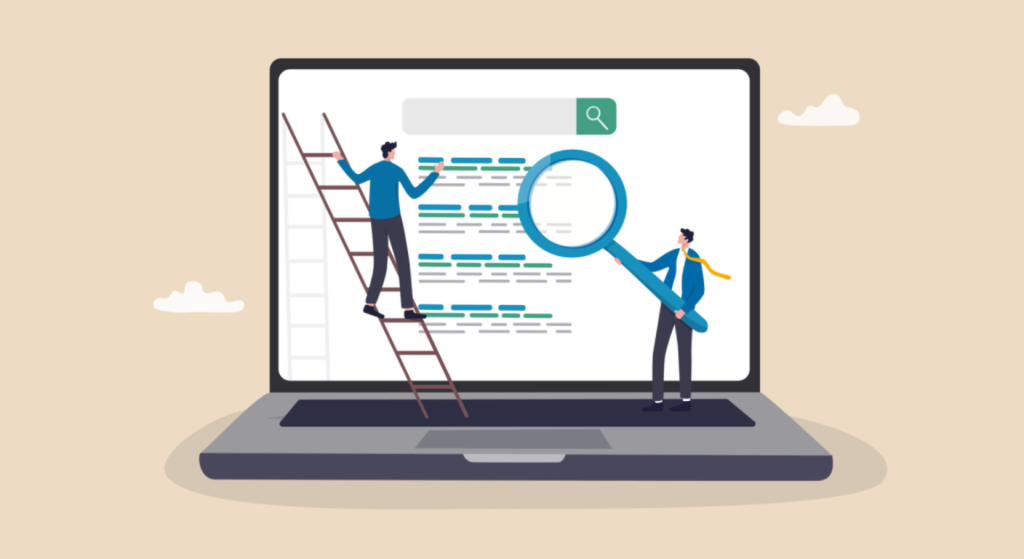
There’s a habit that quietly damages thousands of Google Ads campaigns every month. Someone wants to check if their ad is showing. So they open Chrome, search their keyword, and scroll until they find it.
It feels like due diligence. It isn’t.
Every time you do that, Google registers an impression. If you don’t click your own ad and you usually won’t that impression counts against your click-through rate. Do it enough times, and Google’s algorithm starts treating your ad as less relevant to that query. Your Quality Score dips. Your cost-per-click rises. All because you were trying to stay informed.
The fix is free, takes 30 seconds to access, and is built directly into Google Ads.
What Is the Google Ad Preview Tool?
The Google Ad Preview and Diagnosis Tool is a browser-based utility inside Google Ads that simulates a live Google search results page without recording impressions, triggering billing events, or affecting your Quality Score. You see exactly what a real user in a specific location, on a specific device, in a specific language would see. Nothing gets logged against your campaign.
The Google Ad Preview Tool is a built-in Google Ads feature that lets advertisers see how their ads appear in search results for any keyword, location, device, and language — without generating impressions or affecting campaign performance data. It also diagnoses why an ad may not be showing.
There are two versions: the authenticated tool inside your Google Ads account (found under Tools → Planning → Ad Preview and Diagnosis), and the anonymous public version at ads.google.com/anon/AdPreview which requires no login at all.
That second version matters more than most guides acknowledge. More on that shortly.
Why Searching Your Own Keyword on Google Is a Real Problem
Here’s the thing: the damage isn’t theoretical.
According to Google’s Ads Help documentation, the Ad Preview and Diagnosis Tool is specifically designed to prevent impression inflation, the exact outcome of manually searching your own keywords in a live browser. When an ad receives impressions but no clicks over a sustained period, Google interprets this as a signal that the ad isn’t resonating with users searching that query. Over time, this pattern feeds into your Quality Score calculation, which directly affects your Ad Rank and what you pay per click.
Some experts argue that a few manual searches won’t meaningfully move the needle. That’s valid for large-volume campaigns where your impressions run into the hundreds of thousands per day. But if you’re running a niche B2B campaign with 40–80 impressions a day and you or your team are checking it manually multiple times a week those false impressions represent a measurable percentage of your total data. The math stops being theoretical fast.
Manually searching for your own Google Ads to check visibility registers as a real impression in your campaign data. According to Google’s Ads Help documentation, using a live browser search instead of the Ad Preview Tool can lower your ad’s Quality Score over time by contributing impression-without-click signals, which Google’s algorithm interprets as reduced ad relevance.
Most people also try incognito mode as a workaround. It doesn’t help. Incognito prevents your browser from storing cookies; it doesn’t change how Google’s ad server records the impression event. The request still reaches Google’s infrastructure. The impression still counts.
How to Access and Use the Google Ad Preview Tool
There are two paths in, and which one you use depends on your situation.
Path 1: Inside Your Google Ads Account (Authenticated)
To preview your Google Ads without triggering impressions, follow these steps:
- Sign in to your Google Ads account.
- Click the Tools icon (wrench) in the top navigation bar.
- Under Planning, select Ad Preview and Diagnosis.
- Enter your keyword, then set your target location, language, and device.
- Click Search to see how your ads appear. No impression is recorded.
- If your ad isn’t showing, check the diagnosis panel below the results for the reason.
The authenticated version has one key advantage: it pulls directly from your live campaign data. If your ad isn’t showing, the diagnosis panel tells you exactly why budget is exhausted, ad disapproved, keyword not matching, bid too low, or location mismatch. This specificity is what separates it from just looking at your campaign dashboard.
Path 2: The Anonymous Public Tool (No Login Required)
The URL is ads.google.com/anon/AdPreview.
This version works without a Google account. You set a keyword, location, language, and device and it shows you what Google Search would return for that query in those parameters.
Quick note: the anonymous version does not diagnose why your specific ad isn’t showing. It can only confirm whether an ad appears. But for agencies managing client accounts, or for anyone needing to check ad visibility from a different geographic region without switching VPNs or asking a contact in another city to search for them this tool is the correct answer.
Ad Preview Tool vs. Searching Google Directly: A Direct Comparison
Ad Preview Tool vs. Live Google Search: The Ad Preview Tool is better suited for all ad visibility checks because it shows accurate results without recording impressions or affecting Quality Score. A live Google search should never be used for ad verification it inflates impression data and can depress CTR over time. The key difference is whether your search creates a permanent data record in your campaign.
Quick Comparison
| Method | Best For | Key Benefit | Limitation |
| Google Ad Preview Tool (authenticated) | Campaign owners checking own ads | No impression recorded + diagnosis included | Requires account access |
| Anonymous Ad Preview (anon/AdPreview) | Agencies, location testing, no login | No account needed, geography-flexible | No diagnosis panel for specific campaigns |
| Live Google Search (Chrome/incognito) | Nothing — avoid this | Feels familiar | Records impression, harms CTR, no diagnosis |
| SEMrush Ad Research | Competitive intelligence | See competitor ad copy and history | Paid tool, not a real-time preview |
| Optmyzr Ad Monitoring | Automated scheduled checks | Alerts without manual searching | Setup required, paid subscription |
What to Do When the Tool Says Your Ad Isn’t Showing
This is where the tool earns its name.
The Diagnosis half of Ad Preview and Diagnosis is underused. When your ad doesn’t appear in the preview results, the panel below the search bar lists one or more reasons. Here are the most common and what each actually means:
Your ad isn’t showing because your budget has been depleted.
Your daily budget ran out before the time of your search. This is normal if you’re running a limited budget campaign. Check your campaign’s average hourly spend distribution in the auction insights tab.
Your ad isn’t showing in this location.
Your location targeting excludes the region you entered in the preview tool. This is common when agencies set up campaigns for clients in specific metro areas and forget to verify the targeting radius.
Your keyword triggered a low search volume status.
Google has flagged the keyword as too niche to serve consistently. This doesn’t mean the keyword is wrong, it may mean you need to consolidate match types or expand to a broader variation.
Or maybe I should say it this way: the diagnosis panel doesn’t just tell you that something is wrong. It tells you which lever to pull. That’s the actual value beyond the preview itself.
When the Google Ad Preview Tool shows no ad, the diagnosis panel explains the specific cause such as budget exhaustion, location mismatch, or keyword status. According to Google Ads Help documentation, this diagnosis is only available in the authenticated version of the tool and reflects your live campaign settings at the time of the search.
The Anonymous Tool: The Feature Most Guides Don’t Mention

Look, if you’re an agency or a freelance PPC consultant managing 5+ client accounts, here’s what actually works: bookmark ads.google.com/anon/AdPreview and use it before you open any client’s account.
The anonymous tool lets you simulate search results for any location in the world without needing to be physically present there, without logging into the client’s Google Ads account, and without creating any data footprint. If a client in Manchester is asking why their ad doesn’t show searches in Edinburgh, you can check that in 90 seconds without involving them.
What most guides skip is the limitation: the anonymous tool shows a Google SERP, not necessarily your client’s specific ad configuration. Ad scheduling, audience targeting, and Smart Bidding adjustments can all cause an ad to appear in the anonymous tool but not serve to actual users in specific contexts. Use the authenticated version for campaign-specific diagnostics. Use the anonymous version for quick geographic checks and competitor visibility scans.
I’ve seen conflicting data on this some sources suggest the anonymous tool mirrors live results almost perfectly, others note a delay of several hours during algorithm updates. My read is that for practical spot-checks it’s reliable enough, but for formal QA before a client presentation, always use the authenticated tool logged into the actual account.
The anonymous Google Ad Preview Tool at ads.google.com/anon/AdPreview allows anyone to check ad visibility without a Google account. It’s particularly useful for agencies verifying ads in different geographic locations or checking competitor ads though it does not include campaign-specific diagnosis features available in the authenticated version inside Google Ads.
Common Mistakes When Using the Ad Preview Tool
Even users who know the tool exists make a few consistent errors.
Checking the wrong device type. Your campaign may be showing perfectly on desktop but have mobile bid adjustments set to -70%. If you preview on desktop and see the ad, you might assume mobile is fine too. Always test both device settings separately.
Using the tool from the wrong account. Agencies managing MCC (Manager) accounts sometimes run the preview from the top-level account rather than the client’s sub-account. Campaign-level settings including ad scheduling and audience targeting apply at the account level. The preview must be run from inside the correct individual account.
Treating ad not showing as a campaign failure. Ad scheduling, Smart Bidding, and audience bid adjustments can all legitimately suppress an ad during off-peak hours or for lower-value audience segments. The tool shows what’s happening right now, not what’s happening over your full campaign window.
FAQs
Q: What’s the best way to check if my Google ad is showing without affecting impressions?
A: Use the Google Ad Preview and Diagnosis Tool inside your Google Ads account under Tools → Planning. It simulates a real search result without recording impressions or affecting your Quality Score.
Q: How do I use the Google Ad Preview Tool without logging in?
A: Go to ads.google.com/anon/AdPreview. This anonymous version lets you check ad visibility for any keyword, location, device, and language without a Google account no impression is recorded.
Q: Why does my ad not show in the Google Ad Preview Tool?
A: The diagnosis panel will explain the reason common causes include depleted daily budget, location targeting mismatch, disapproved ad creative, or a keyword in low search volume status.
Q: Should I use incognito mode to check my Google Ads?
A: No. Incognito mode only prevents local browser tracking. It doesn’t stop Google from recording the impression against your campaign. Use the Ad Preview Tool instead.
Q: When should I use the anonymous Ad Preview Tool vs. the one inside Google Ads?
A: Use the anonymous version for quick geographic checks or agency-side visibility scans. Use the authenticated version inside Google Ads when you need campaign-specific diagnosis of why an ad isn’t showing.This guide covers the Ad Preview and Diagnosis Tool for Search campaigns running on Google.com. It does not address how ads appear in the Display Network, YouTube, or Gmail placements, which require separate preview methods.